
How to Use This Website
A short guide to what is on this site and how to get the most out of it.
What This Website Is
This website is a self-study companion for learning design software: a place to turn to when a model, a drawing or a print does not behave the way you expect.
It is built around the questions students actually run into, and it aims to teach the thinking behind the tools, not just the buttons. Once you understand why the software behaves the way it does, you can solve the next problem yourself — in Rhino or in any other program.
What You Will Find Here
The home page and the menu on the left lead to six sections:
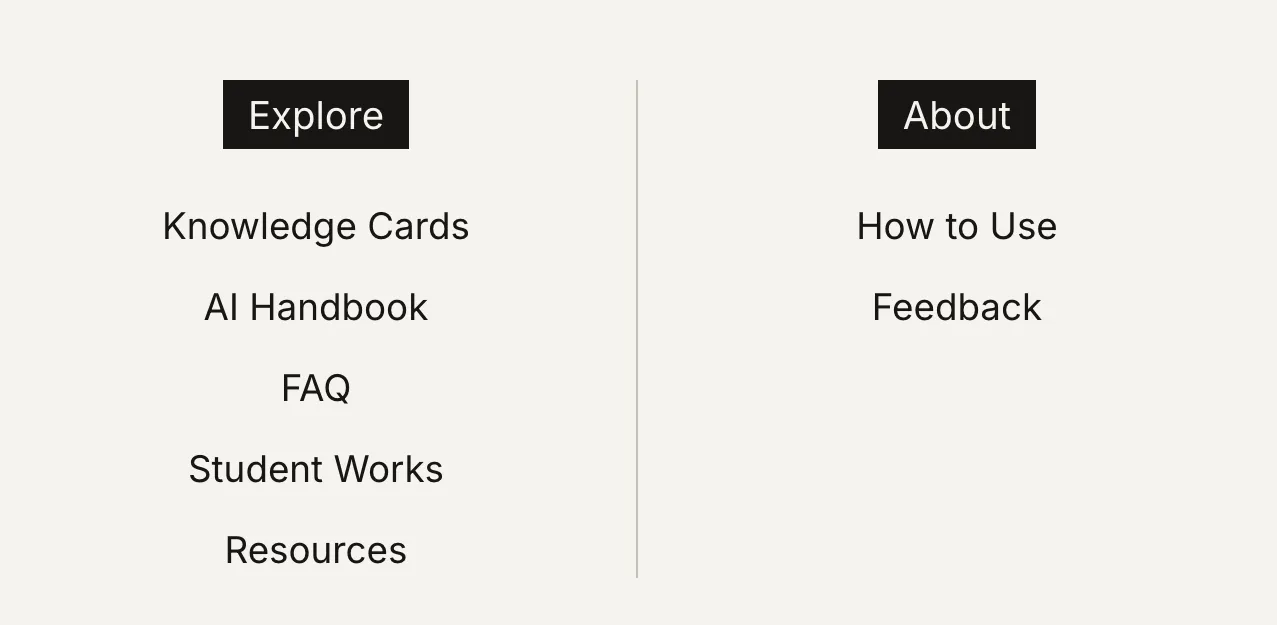
- Knowledge Cards — Short cards, each answering one common question, grouped by the stage of your project. Use them to understand a problem and build a sound workflow.
- AI Handbook — A guide to asking AI good questions, with ready-to-use prompt templates. Use it when you need a quick fix for a specific software problem.
- FAQ — Practical answers about computer rooms, workstations and software access at school. Check it before you start hunting for a machine or a licence.
- Student Works — A selection of strong student projects. Use them to see what a finished task should look like and what level to aim for.
- Resources — A shared list of useful tools, libraries and learning materials. Browse it when you need more than the cards cover.
- Feedback — A form for telling us what is missing or unclear. Use it to help us improve the site.
1. Knowledge Cards
1.1 Find the Right Card
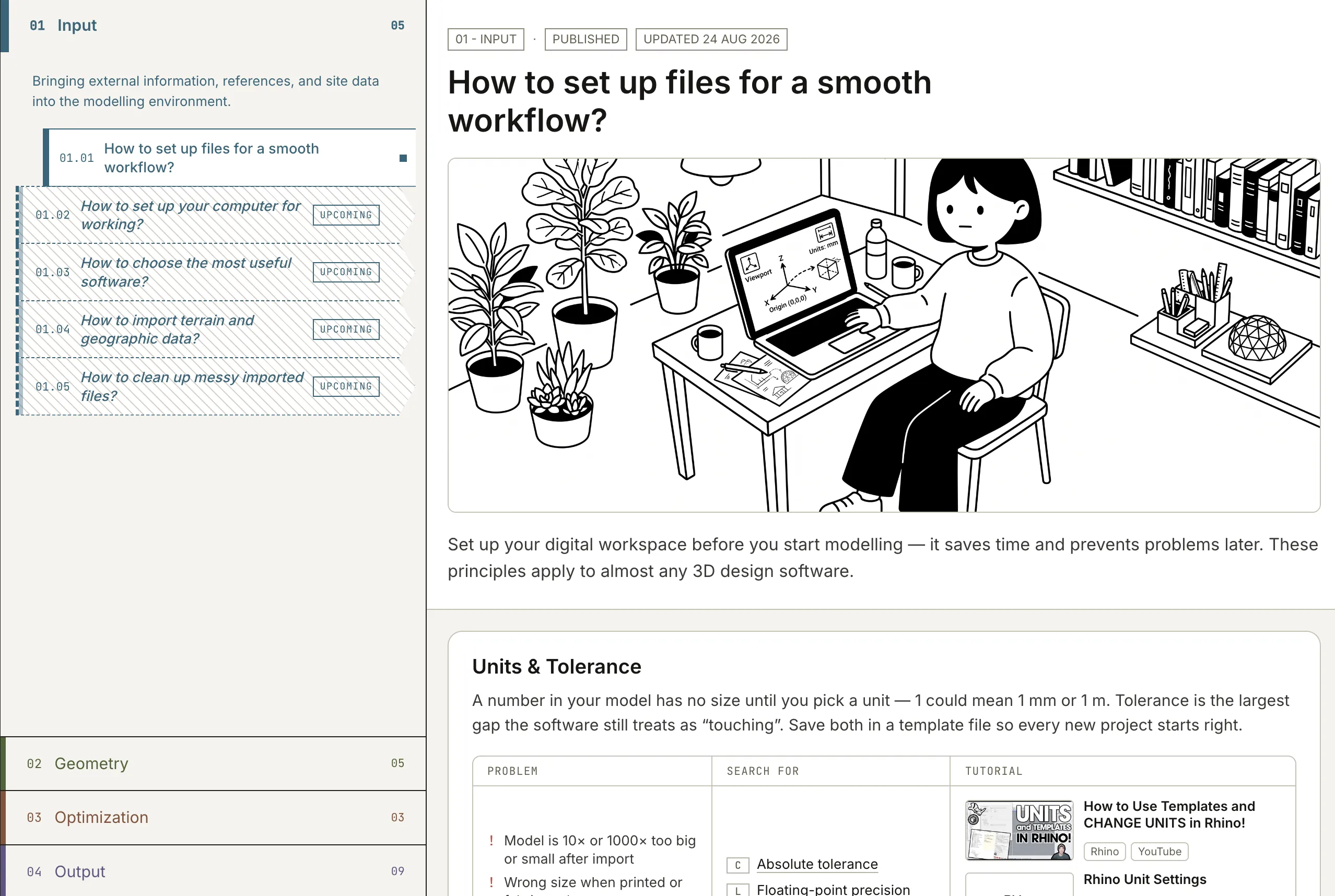
The cards are sorted into four stages that follow a typical design project:
- 01 Input — starting a project and bringing in site data, references and imported files.
- 02 Geometry — building and organising the 3D model.
- 03 Optimization — keeping the model light, clean and ready to pass on.
- 04 Output — turning the model into drawings, renders, prints and physical models.
First ask yourself where your problem sits in your workflow, then open that stage in the list on the left and click a card to read it. Tabs with diagonal hatching and an UPCOMING label are cards still in progress.
1.2 How to Read a Card
Every card has the same structure, from top to bottom:
- Title — the question the card answers.
- Lead — the core idea in one or two sentences. It often clears up a common misunderstanding, so read it first.
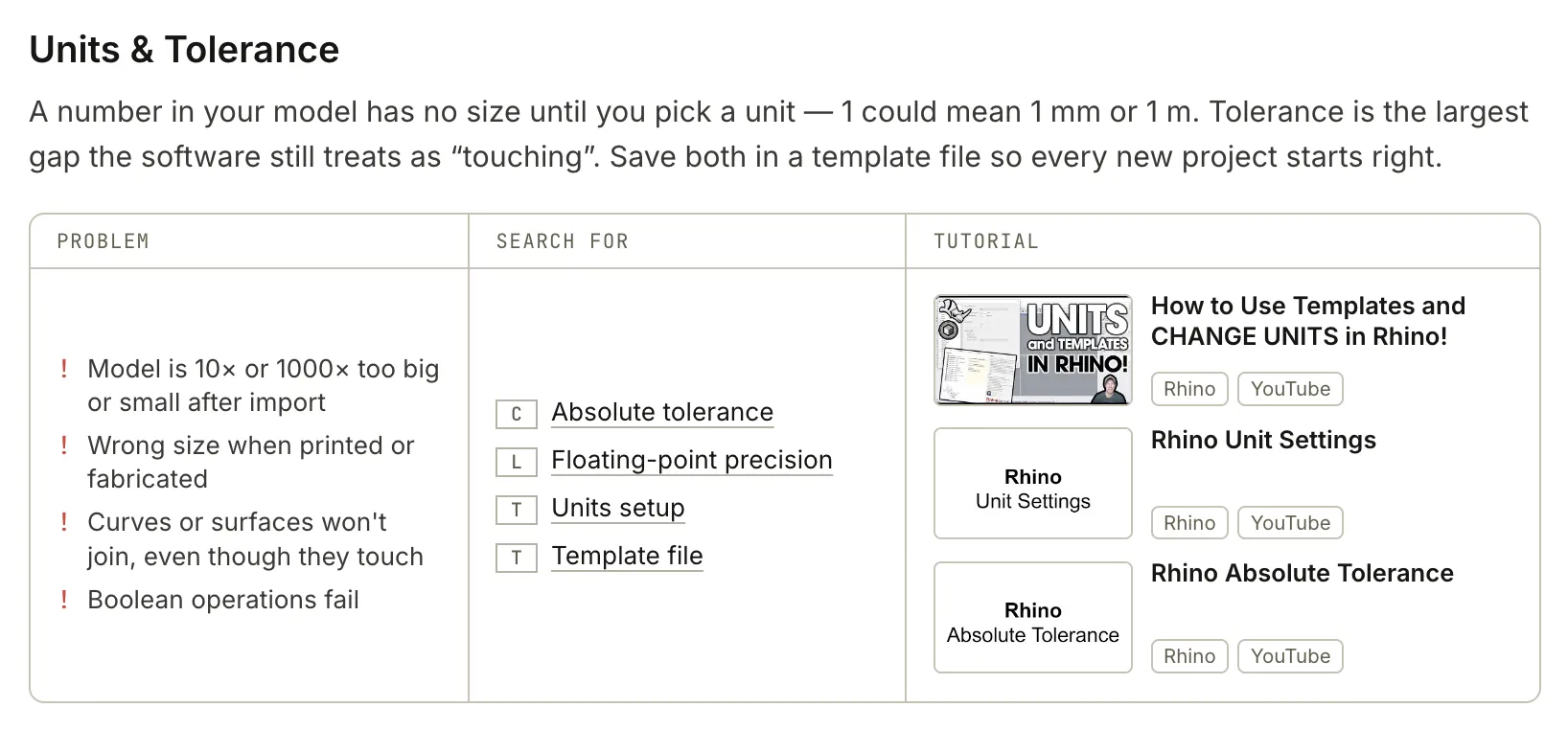
- Topics — each card splits its question into four or five topics. Each topic has three parts:
- Problem — what you see on screen when this topic is the cause. If one of these matches your situation, this is the topic for you; if none do, skip to the next one.
- Search for — keywords for finding out more (see below).
- Tutorial — selected videos and documentation. The badges show which software it uses (Rhino, Revit, ArchiCAD…) and where it comes from (YouTube, Rhino Docs…).
The Keywords: C, L and T
The keywords in Search for are sorted into three types. Each answers a different question:
- C — Concept: what is it? A general term that works in any software or textbook.
- L — Logic: why does the software behave this way? The mechanism behind the problem.
- T — Tool: what do I use? The name of a command or panel, labelled with its software.
Together they form a chain from idea to action, for example in the topic above: Absolute tolerance (C) → Floating-point precision (L) → Units setup (T).
Click any keyword to search for it on Google. The search adds a few words such as “3D modeling” so that the results stay about design software.
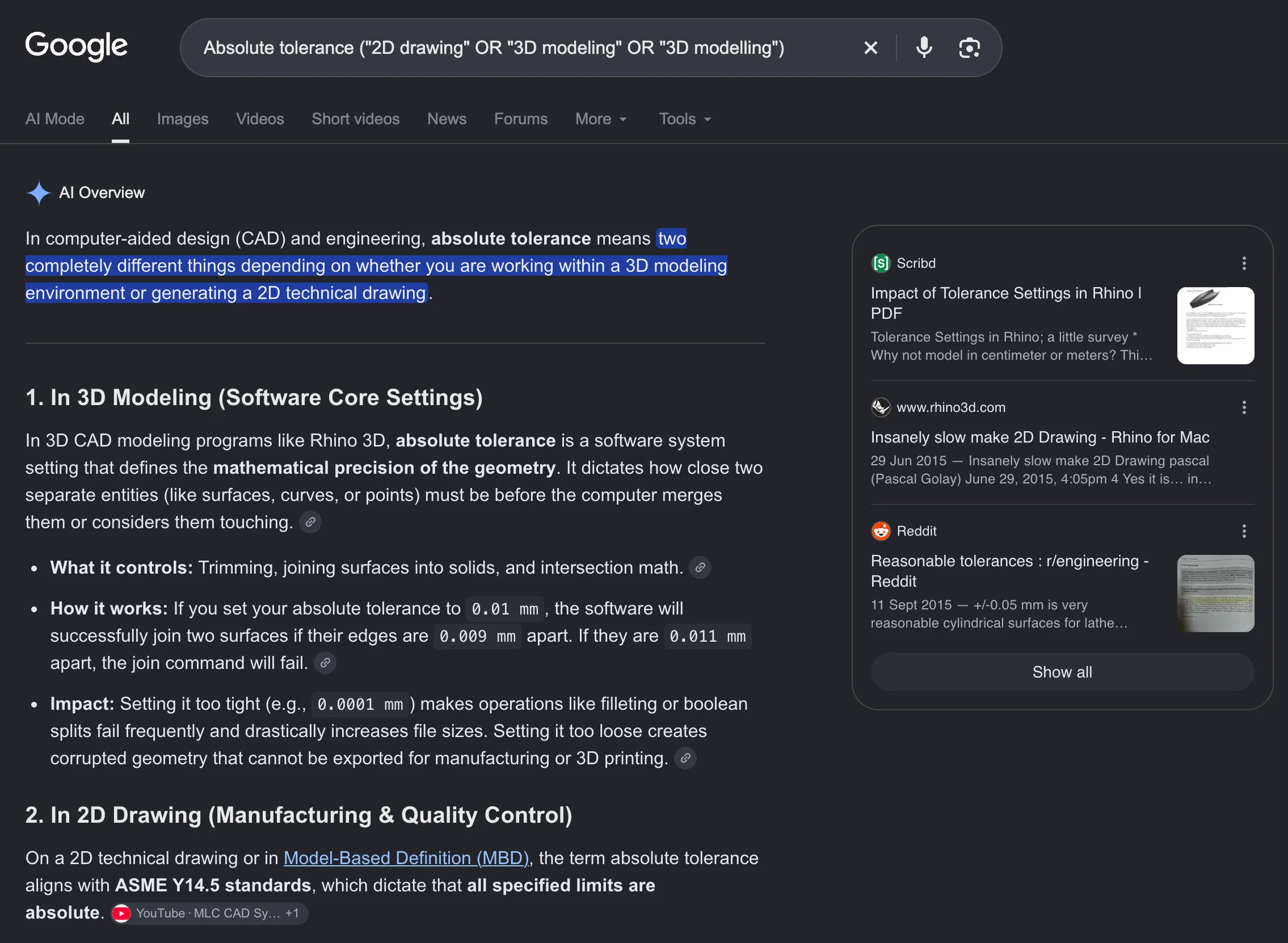
To go further, switch to the AI Mode tab at the top of the results and keep asking questions — for example “What does absolute tolerance mean in Rhino?”, “explain this simply” or “how does this work in Revit?”.
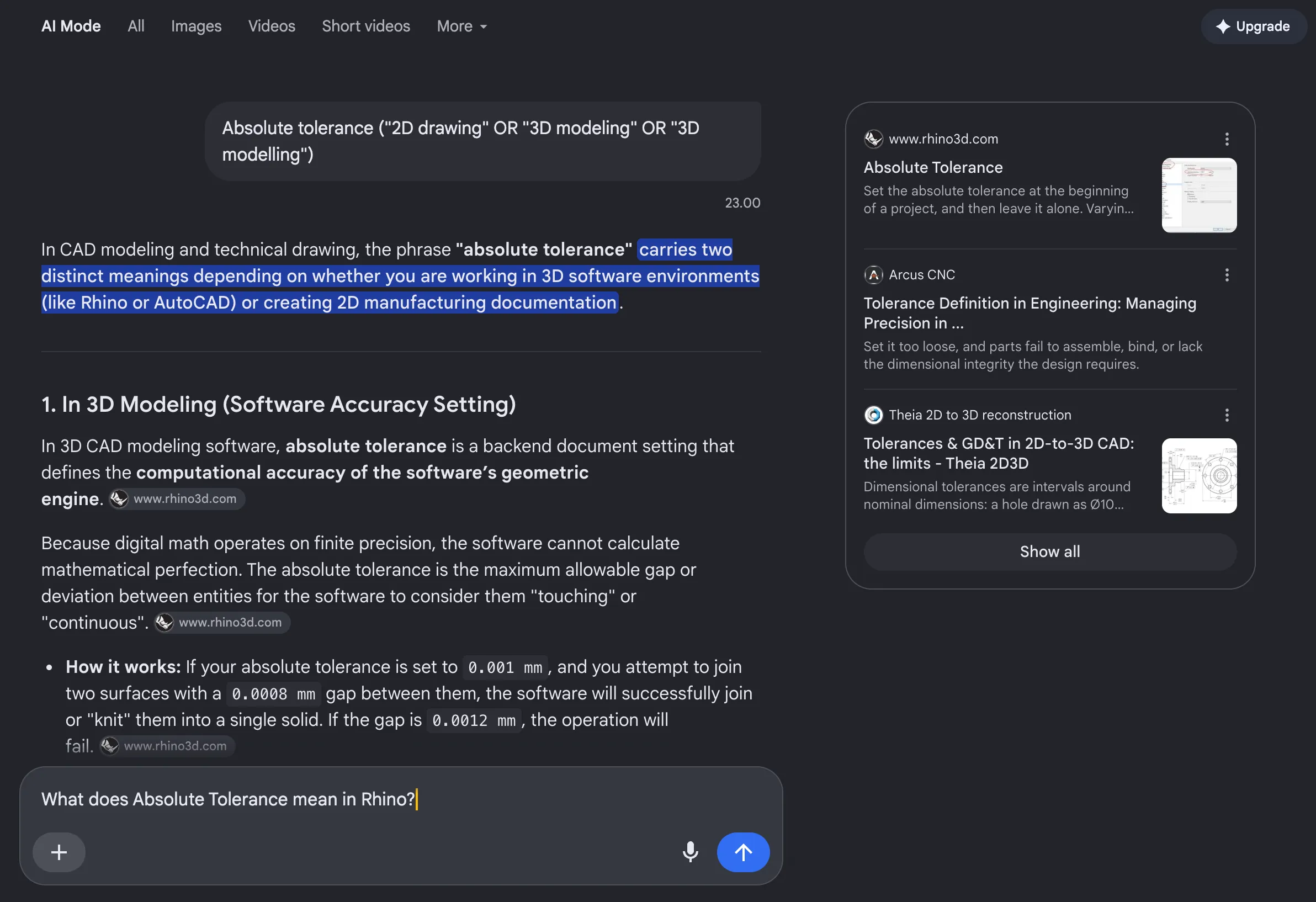
Knowing the right term is often half the solution: it makes your searches, and your questions to AI, much more precise.
2. AI Handbook
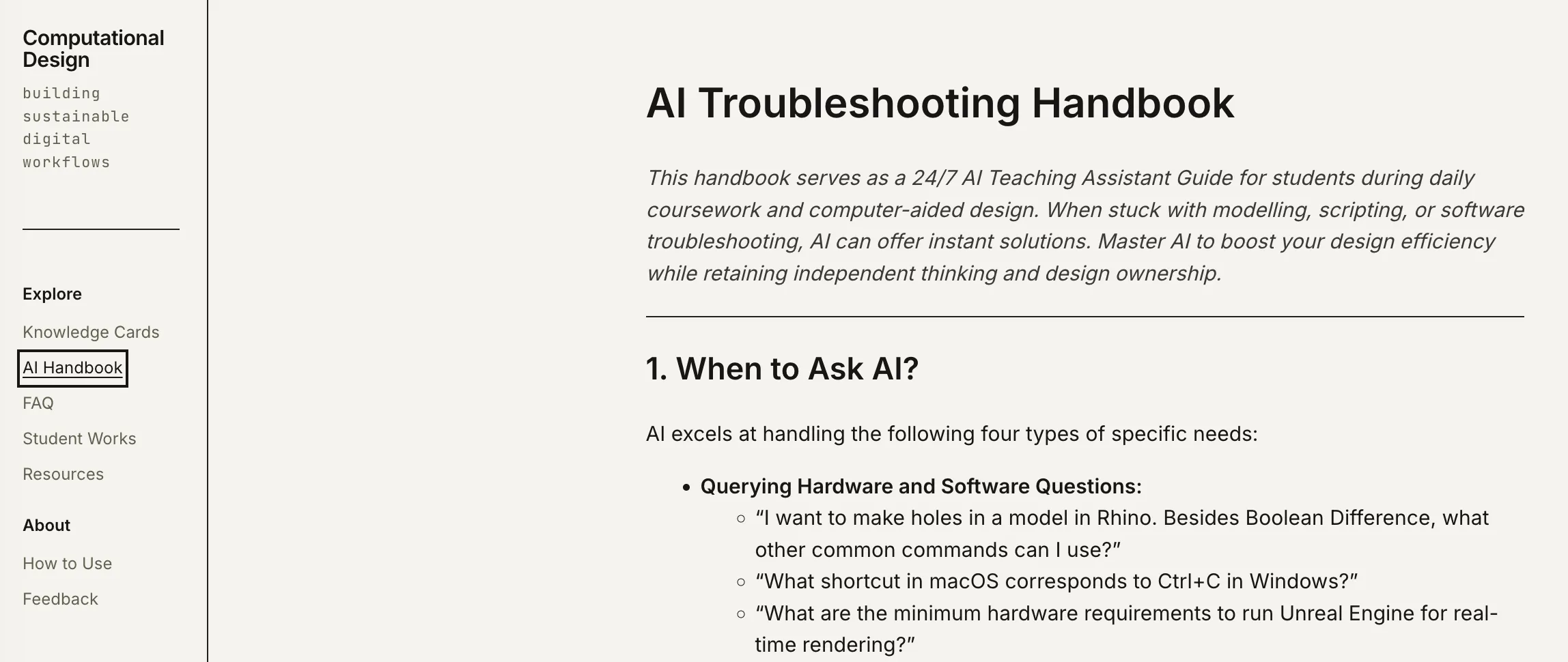
Knowledge Cards teach you a workflow and a way of thinking. The AI Handbook is for the moment you are stuck on one specific software problem and need an answer now, not after waiting for a tutor.
It shows you when AI is helpful, when not to trust it, and how to write a clear question. Copy one of its templates, fill in your software, goal and error, and you will get a far more useful answer.
3. FAQ
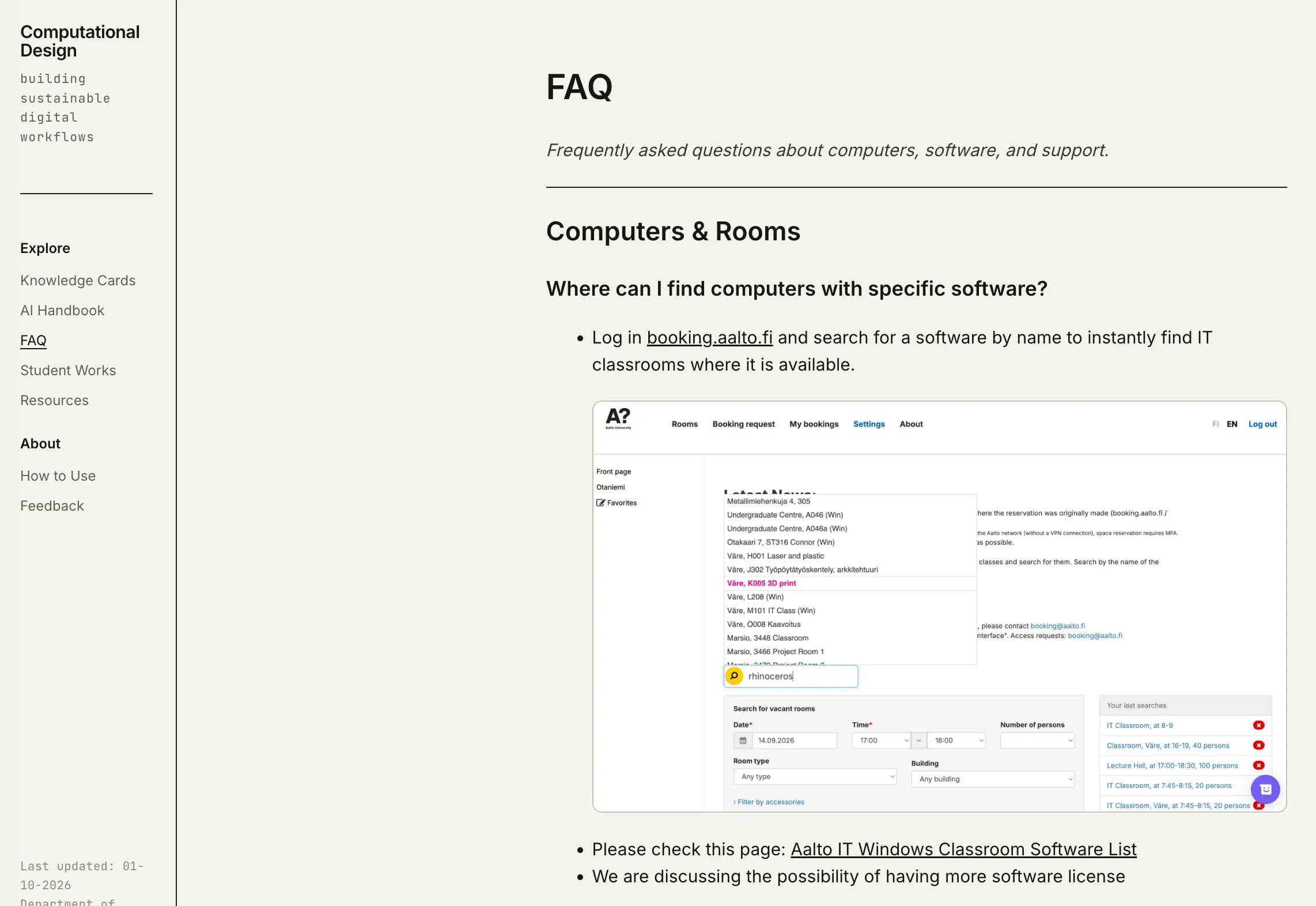
The FAQ covers practical questions about studying at Aalto: where to find computers with specific software, which rooms have high-performance workstations, how to book a machine, and what to do when printing or remote desktop fails.
4. Student Works
A selection of strong student projects. Before you start an assignment, use them to see what a good result looks like and what the task really asks for.
5. Resources
A shared collection of tools, libraries and learning materials that we use often. Start here when you are looking for something the cards do not cover.
6. Feedback
This website grows with your input. We especially want to hear about:
- Your experience — what was easy to find, what was confusing, what was missing.
- Questions — problems you ran into that no card answers yet.
- Better material — a clearer tutorial, a more accurate keyword or a better example you have found.
We read every response and update the site accordingly.