Design
building sustainable digital workflows

- 01Input06
- 02Geometry03
Building, organising, and controlling 3D form and computational logic.
- 03Optimization04
- 04Output07
How to build 3D models efficiently without overloading the computer?
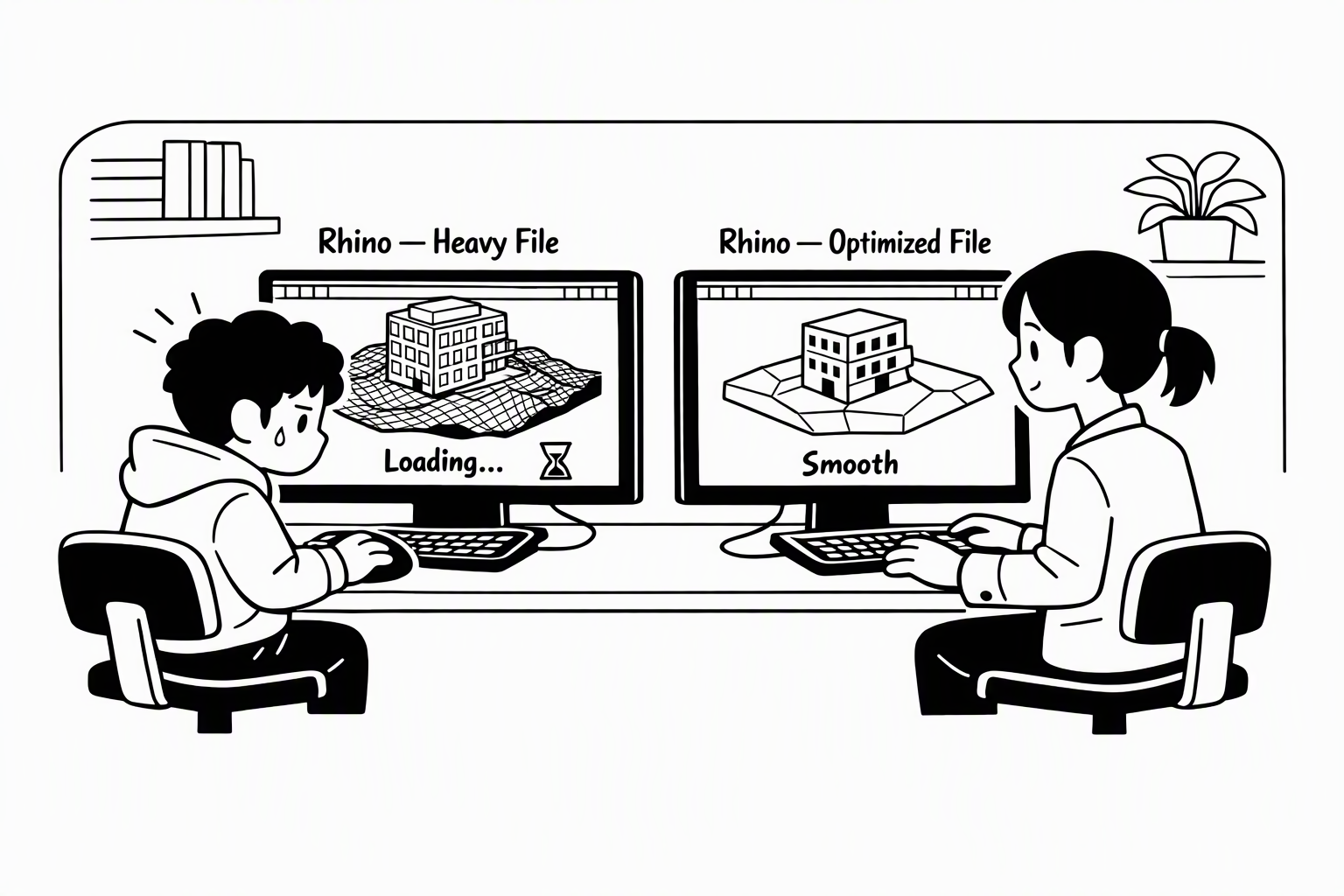
A model gets heavy because of how it is built, not because the building is big. A few decisions before and while you model keep the computer fast.
Level of Detail & Scale
Let the scale decide how much to model: a 1:500 site model needs volumes, not window frames. Add detail step by step as the design develops and the scale gets closer, and skip what nobody will see.
You may notice:
- The model slows down long before the design is finished
- You spend hours on details that disappear in the final image
NURBS or Mesh?
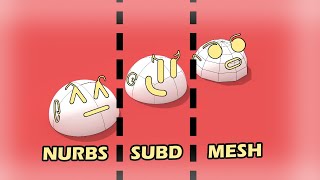
NURBS are exact and easy to edit but heavy; meshes are light but hard to change precisely. Use NURBS for what you design, and keep visual-only objects as meshes — most downloaded furniture and trees already are.
You may notice:
- The model gets slow after you convert downloaded objects to NURBS
- You can't edit a downloaded object precisely
Search for

Simple Geometry
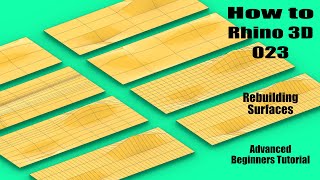
The same shape can be a surface with ten control points or a thousand, or a mesh with a hundred faces or a million — and the dense version is slower. Rebuild heavy surfaces with fewer points, and reduce meshes to what you need.
You may notice:
- Surfaces look wavy or bumpy where they should be smooth
- A simple-looking object makes the viewport lag
Search for
- C(concept)Control points (NURBS)(search Google, opens in a new tab)
- L(logic)Mesh decimation(search Google, opens in a new tab)
- T(tool)Rebuild (Rhino)(search Google, opens in a new tab)
- T(tool)ReduceMesh (Rhino)(search Google, opens in a new tab)
- T(tool)QuadRemesh (Rhino)(search Google, opens in a new tab)
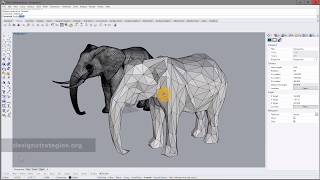
Light Viewport Display
To show NURBS on screen, Rhino turns them into a display mesh; finer mesh settings look smoother but slow the viewport. Keep “Jagged and faster” while modelling, and work in Wireframe or Shaded rather than Rendered.
You may notice:
- The viewport stutters when you orbit around the model
- Everything slows down as soon as you switch to Rendered view