Design
building sustainable digital workflows

- 01Input06
Bringing external information, references, and site data into the modelling environment.
- 01.01How to set up files for a smooth workflow?
- 01.02How to organise your model with layers?
- 01.03How to set up your computer for working?Upcoming
- 01.04How to choose the right software for the job?
- 01.05How to import terrain and geographic data?Upcoming
- 01.06How to clean up messy imported files?Upcoming
- 02Geometry03
- 03Optimization04
- 04Output07
How to organise your model with layers?
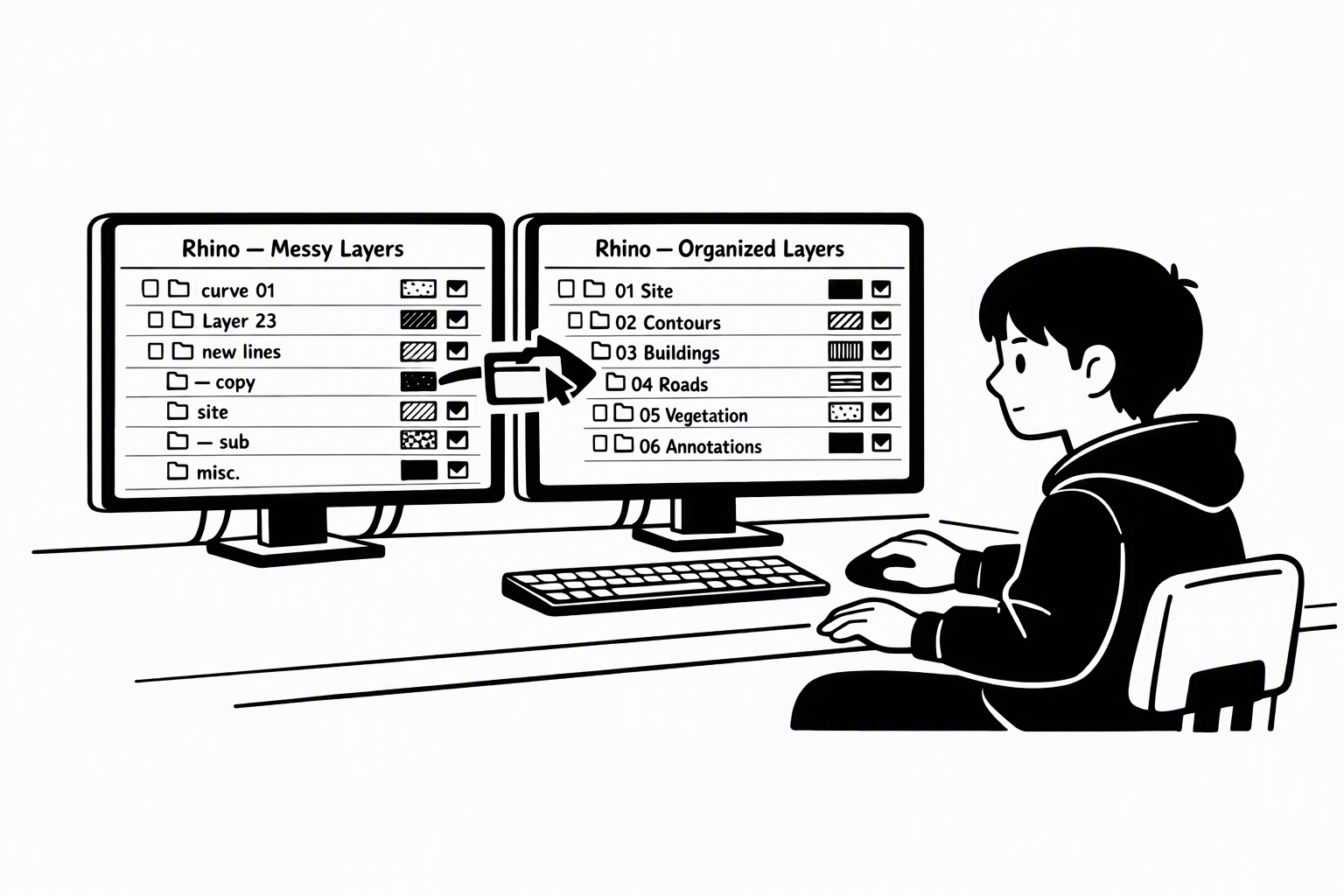
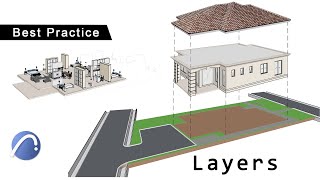
Layers sort your model so you can control many objects at once. There is no single correct system — pick a logic that fits your project and keep it consistent.
What Layers Do for You
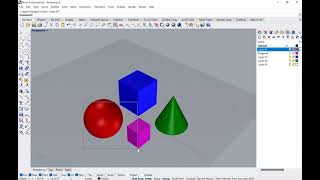
Layers let you hide, lock, select or restyle many objects at once instead of one by one. Watch the current layer: everything new you draw lands on it.
You may notice:
- You turn off a layer, but some of its objects stay visible
- You change a layer's colour, but some objects don't change
- You click objects one by one to hide or recolour them
Search for
Sorting Logic
There is no single correct way to sort layers: by element (beams, slabs, columns), by material (wood, steel) or by purpose (site, imports, drawings). Test a few and keep one; Revit skips layers and sorts by fixed categories.
You may notice:
- Turning off one layer hides half of the model
- You can't decide whether a wooden wall goes on “Walls” or “Wood”
Search for
Hierarchy
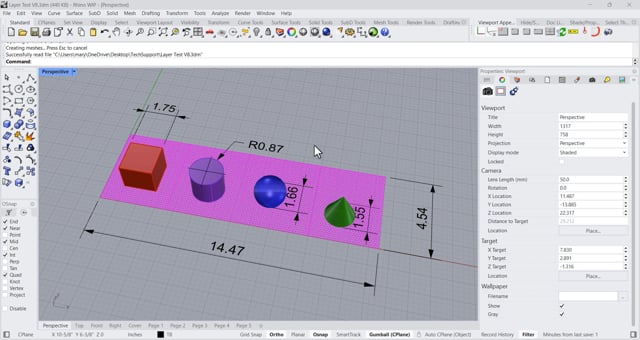
Sublayers split a parent layer into finer parts, e.g. Facade › Glass and Facade › Panels. Switch off or lock the parent and all its sublayers follow — one click controls a whole system.
You may notice:
- To hide a whole building you have to switch off a dozen layers
- A sublayer won't turn on, however often you click it
Search for
Naming & Templates
Give layers clear, consistent names — a number prefix like 01_Site keeps them in order. Save the finished structure in a template file so every new project starts the same way.
You may notice:
- A week later you can't tell what is on Layer 01 or Layer 02
- Classmates can't find anything when you share a file
Search for
Tutorial
No video yet