Design
building sustainable digital workflows

- 01Input06
Bringing external information, references, and site data into the modelling environment.
- 01.01How to set up files for a smooth workflow?
- 01.02How to organise your model with layers?
- 01.03How to set up your computer for working?Upcoming
- 01.04How to choose the right software for the job?
- 01.05How to import terrain and geographic data?Upcoming
- 01.06How to clean up messy imported files?Upcoming
- 02Geometry03
- 03Optimization04
- 04Output07
How to set up files for a smooth workflow?
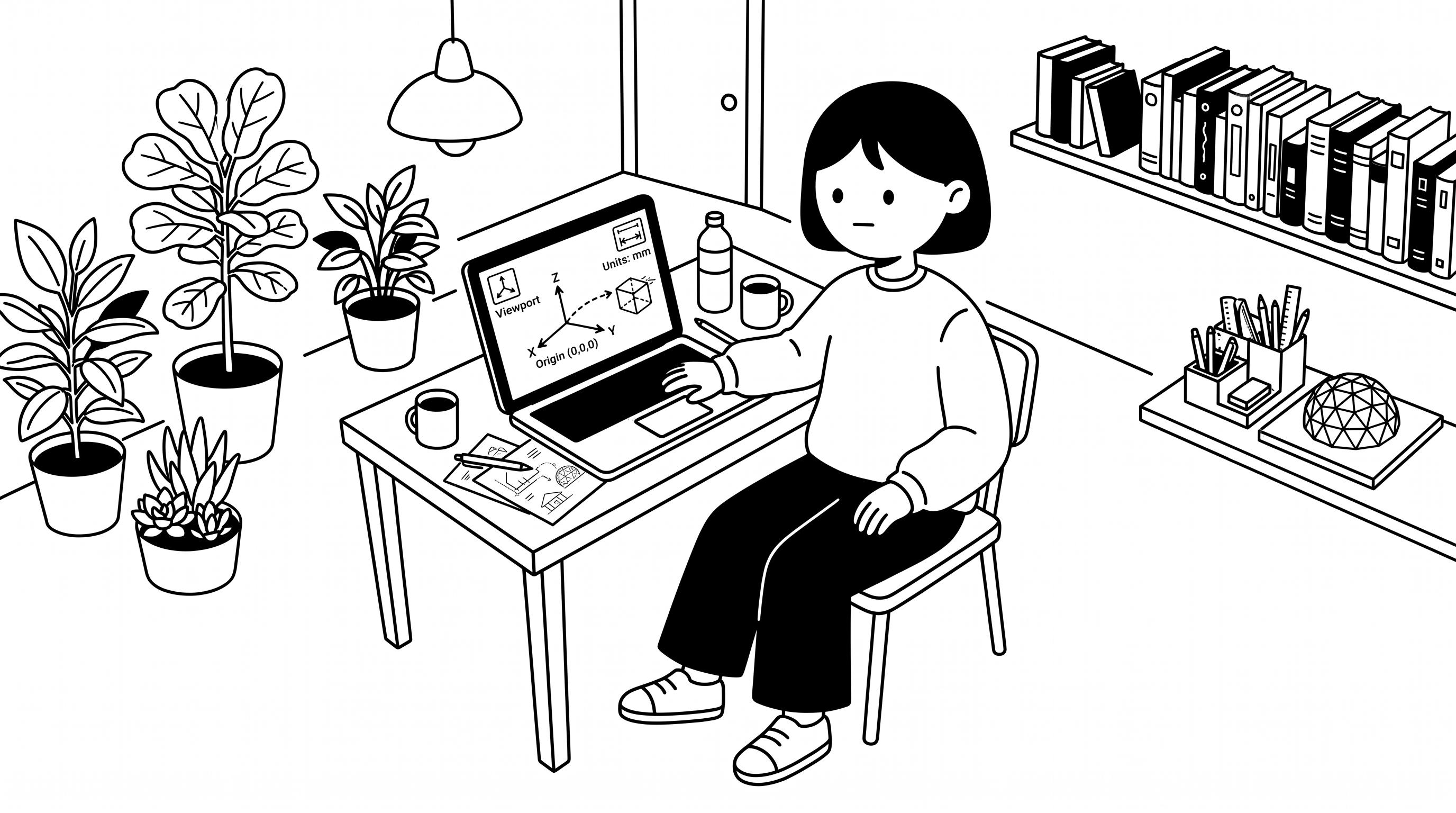
Set up your digital workspace before you start modelling — it saves time and prevents problems later. These principles apply to almost any 3D design software.
Units & Tolerance
A number in your model has no size until you pick a unit — 1 could mean 1 mm or 1 m. Tolerance is the largest gap the software still treats as “touching”. Save both in a template file so every new project starts right.
You may notice:
- Model is 10× or 1000× too big or small after import
- Wrong size when printed or fabricated
- Curves or surfaces won't join, even though they touch
- Boolean operations fail
Search for

The Origin (0,0,0)
The origin is the centre of your digital space. The further you model from it, the less precisely the software can calculate coordinates — so build close to it, and move imported site data there before you start.
You may notice:
- Camera gets stuck when zooming
- Parts of the model randomly disappear
- Lines don't intersect properly
- Imported site data lands far away from (0,0,0)
Search for
Tutorial
No video yet
User Interface
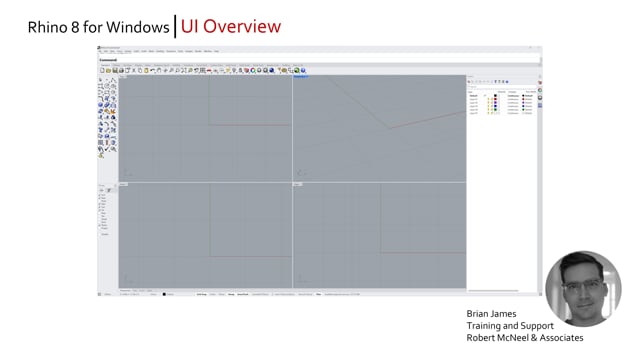
Every program divides the screen into zones — toolbars, command line, property panels. Learn what each does, then customise it so your most-used tools stay within reach.
You may notice:
- Can't find a tool or panel
- A panel disappeared and won't come back
Navigation vs. Transformation
Navigation moves your view (Pan, Zoom, Orbit); transformation moves the object (Move, Copy, Rotate, Scale — or drag the Gumball). Know which one you are doing.
You may notice:
- Rotated the object instead of the view
- Can't find your model in the viewport any more
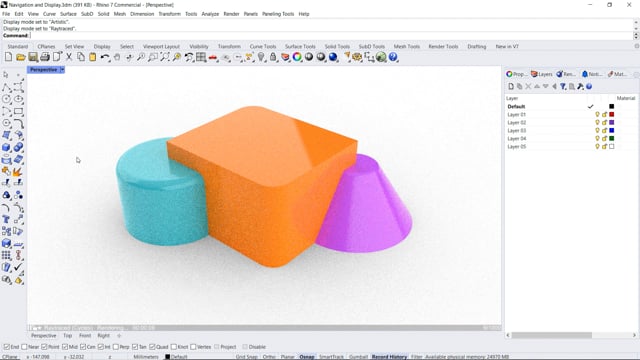
Viewport Display Options
The same model can be shown in different display modes. Use Wireframe for fast, precise drafting; switch to Shaded or Ghosted to check volumes.
You may notice:
- Viewport lags with a large model
- Hard to see or select objects behind other objects