Design
building sustainable digital workflows

- 01Input06
- 02Geometry03
- 03Optimization04
The bridge phase: file weight, translation between software, and computational performance.
- 04Output07
How to check your model before rendering or exporting drawings?
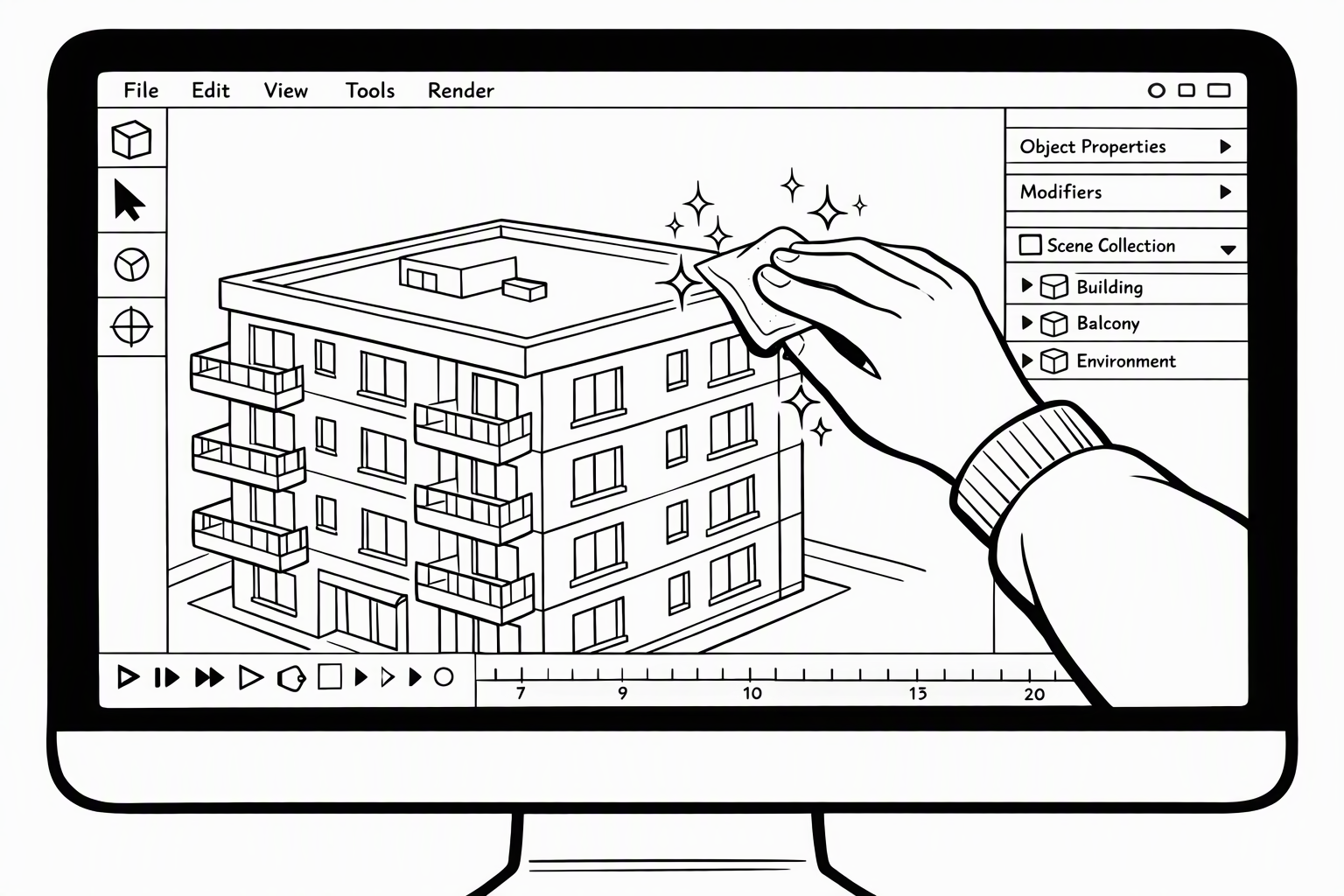
A model can look fine while you work but glitch in a render or drawing. Most glitches come down to three questions: where each surface is, which side faces out, and whether the object is really closed.
Overlapping Surfaces
When two surfaces sit in the same place, the software can't decide which one is in front, so they flicker in stripes (z-fighting). Hidden duplicates also print as double lines. Delete duplicates and don't let faces overlap.
You may notice:
- Surfaces flicker in stripes when you orbit the view
- Some lines look doubled or extra thick in your drawing
Which Side Faces Out
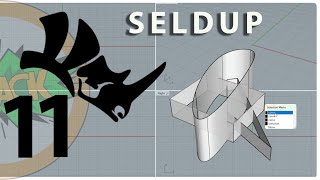
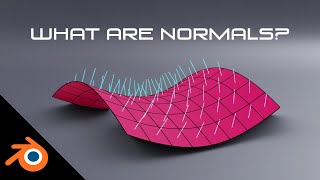
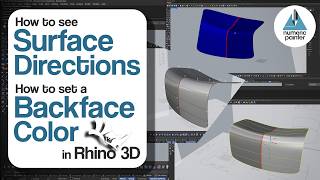
Every surface has a front and a back (its normal). Renderers often draw the back dark or not at all, so a flipped face turns black or vanishes. Show the directions (Dir in Rhino, Face Orientation in Blender) and flip them outwards.
You may notice:
- Some faces render black or look see-through
- A material shows up on one side of a wall but not the other
Search for
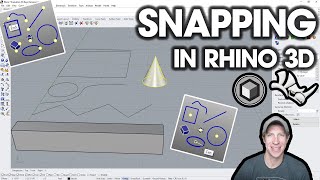
Gaps & Thin Walls
A wall drawn as one surface has no thickness, and walls that only look connected may be millimetres apart. Renders leak light through both, and sections cut empty lines. Model walls as solids and snap their ends together.
You may notice:
- Light leaks in at the corners of a room in your render
- Walls show up as single lines in a section, with nothing to fill
- Furniture floats above the floor, with no shadow underneath