Design
building sustainable digital workflows

- 01Input06
- 02Geometry03
- 03Optimization04
- 04Output07
Preparing visual, printed, and fabricated output from the digital model.
- 04.01How to turn a 3D model into plans, sections and elevations?Upcoming
- 04.02How to make technical drawings clear and readable?Upcoming
- 04.03How to avoid colour and display errors when printing?
- 04.04How to fix blurry lines and pixelated PDF exports?
- 04.05How to choose the right settings for rendering?
- 04.06How to prepare a digital model for 3D printing?
- 04.07How to prepare a model for laser cutting?Upcoming
How to fix blurry lines and pixelated PDF exports?
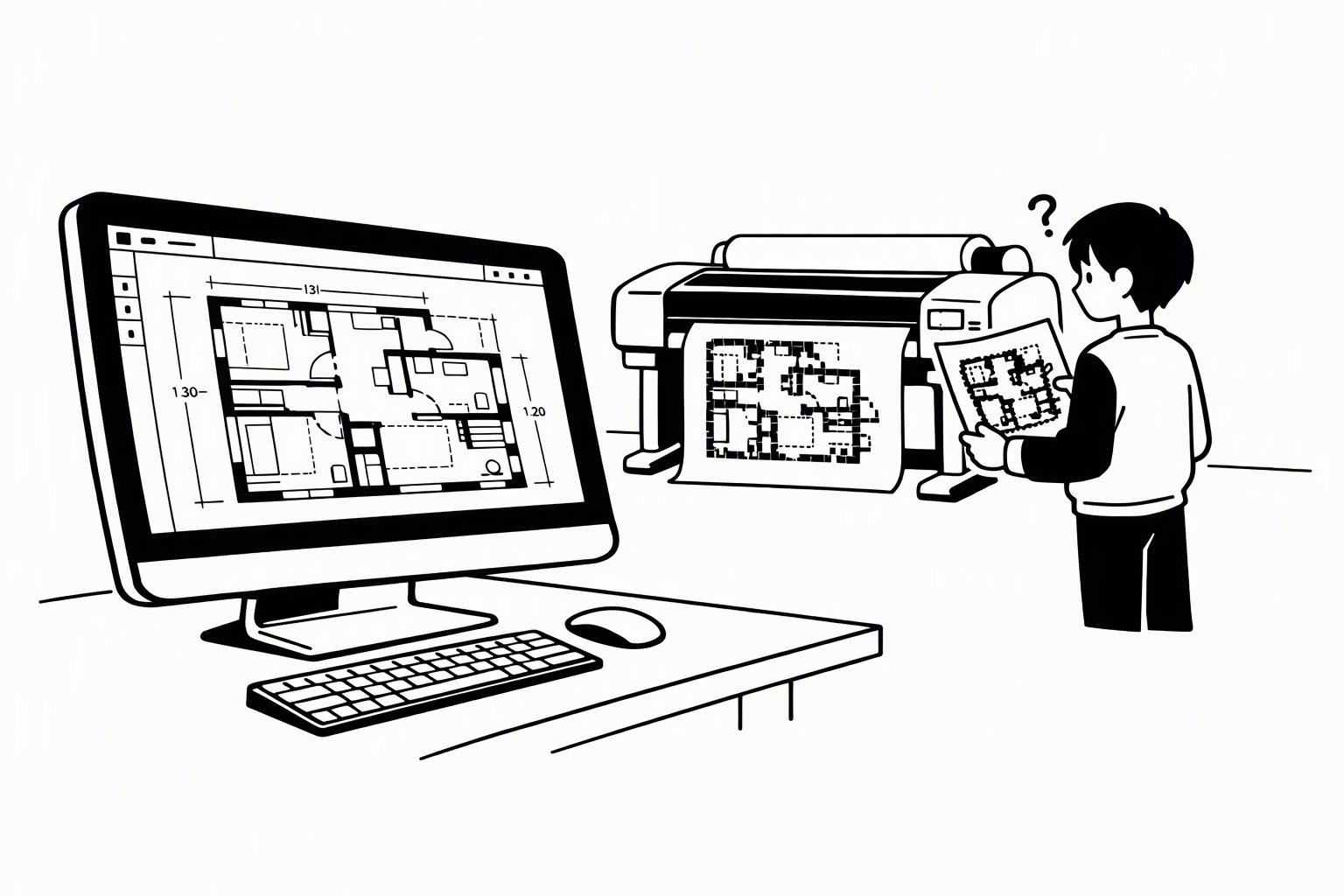
Blurry lines are rarely the printer's fault: somewhere between model and PDF, lines were turned into pixels. Know which parts of your work are lines and which are pixels, and keep each in its format to the end.
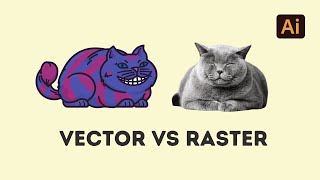
Vector vs. Raster
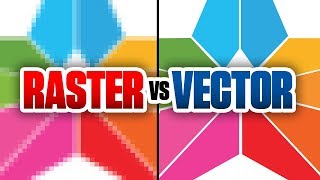
Vector graphics store lines as geometry — start, end, curve — so they stay sharp at any zoom. Raster images store a grid of coloured pixels, which blur when enlarged. Keep drawings as vectors; renders and photos are raster.
You may notice:
- Lines look sharp on screen but fuzzy when you zoom into the PDF
- You can't select or edit the lines in your exported PDF
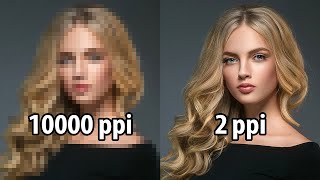
Resolution
A raster image has a fixed number of pixels; ppi says how many fit into an inch of paper. Stretch an image on the page and its effective resolution drops — aim for about 300 ppi at final print size.
You may notice:
- A render looks fine on screen but pixelated on the printed board
- Images turn blurry after you scale them up in the layout

PDF Export Settings
In Rhino's Print dialog, Vector output keeps lines sharp — but only line-based views stay vector (Wireframe, Technical, Pen). Shaded and Rendered views always become pixels at the DPI you set, so raise it for those.
You may notice:
- Your shaded axonometric is blurry in the PDF, but the title text is sharp
- The PDF is huge, yet the drawing still isn't sharp
Search for
Illustrator, Photoshop & InDesign
Each program is best at one kind of data: Illustrator for vector lines, Photoshop for pixels, InDesign to combine both. Place files as links rather than pasting, and avoid the “Smallest File Size” PDF preset — it shrinks images.
You may notice:
- Linework turns blurry after you edit it in Photoshop
- Images are sharp in InDesign but pixelated in the exported PDF